Building a Local AI Chat Client: Llama 3.2 with OpenAI API
Repository: https://github.com/massimorofi/openai_client
Introduction
In the rapidly evolving world of AI, running large language models locally has become increasingly accessible. This repository provides a complete setup for running Meta’s Llama 3.2 model as a chat client using the familiar OpenAI API interface. Whether you’re a developer exploring AI capabilities or someone who wants to chat with an AI model without relying on external APIs, this project offers a self-contained solution.
What This Repository Contains
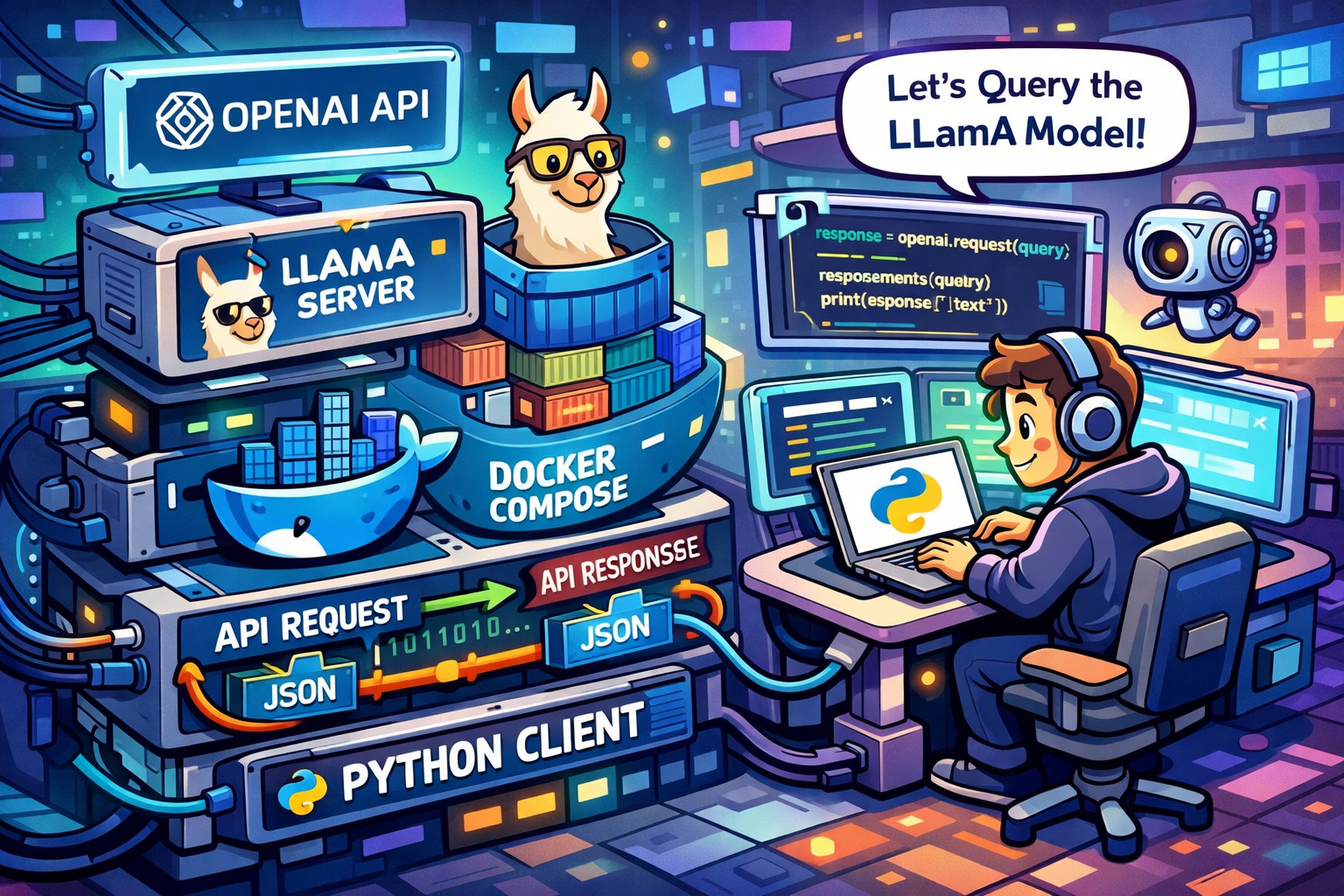
This project combines several powerful technologies to create a seamless AI chat experience:
- Ollama: A tool for running large language models locally
- Llama 3.2: Meta’s latest language model, optimized for efficiency
- OpenAI API Compatibility: Use familiar OpenAI SDK methods to interact with the model
- Docker Compose: Easy containerized deployment with GPU support
- Open WebUI: A beautiful web interface for chatting with your AI
- Python Client: A command-line interface for direct interaction
The repository includes everything you need: Docker configurations, Python scripts, shell scripts for easy management, and comprehensive documentation.
Why Llama 3.2?
Llama 3.2 represents a significant advancement in Meta’s language model series. It’s designed to be more efficient while maintaining high performance across various tasks. By running it locally, you maintain complete control over your data and avoid API rate limits or costs associated with cloud-based AI services.
Step-by-Step Guide to Run the Client
Prerequisites
Before getting started, ensure you have the following installed on your system:
- Docker and Docker Compose
- Python 3.8 or higher
- Git (for cloning the repository)
- NVIDIA GPU (optional, but recommended for better performance)
1. Clone the Repository
1
2
git clone https://github.com/massimorofi/openai_client.git
cd openai_client
2. Set Up Python Environment
Create a virtual environment and install the required dependencies:
1
2
3
python3 -m venv venv
source venv/bin/activate  # On Windows: venv\Scripts\activate
pip install -r requirements.txt
3. Start the AI Services
Launch the Ollama service and Open WebUI with a single command:
1
./start_service.sh
This script will:
- Stop any conflicting containers
- Start the Docker services with GPU acceleration
- Download and load the Llama 3.2 model
- Initialize the model in GPU memory
The process may take several minutes during the first run as it downloads the model.
4. Run the Python Chat Client
Once the services are ready, start the interactive chat client:
1
./run_client.sh
Or run it directly:
1
python3 client.py
5. Start Chatting
The client will present a simple interface:
1
2
3
4
5
Welcome to Llama 3.2 Chat Client!
Type 'exit' or 'quit' to end the conversation.
--------------------------------------------------
You: Hello, how are you?
Assistant: I'm doing well, thank you for asking! As an AI language model...
You can have natural conversations with the AI. The client maintains conversation history and supports streaming responses for a smooth experience.
6. Access the Web Interface (Optional)
While the Python client is running, you can also access Open WebUI at:
http://localhost:3000
This provides a modern web-based chat interface with additional features like conversation management and model switching.
7. Stopping the Services
When you’re done, cleanly shut down all services:
1
./stop_service.sh
Understanding the Architecture
The setup uses Docker Compose to orchestrate two main services:
- Ollama Container: Runs the Llama 3.2 model with GPU acceleration
- Open WebUI Container: Provides a web interface that connects to Ollama
The Python client communicates directly with Ollama’s OpenAI-compatible API endpoint at http://localhost:11434/v1, making it compatible with existing OpenAI SDK code.
Performance Considerations
- GPU Support: The configuration includes NVIDIA GPU passthrough for accelerated inference
- Model Size: Llama 3.2:3b is used for a balance of performance and resource usage
- Memory: Ensure you have sufficient RAM (at least 8GB recommended) and VRAM for GPU acceleration
Customization Options
The repository is designed to be easily customizable:
- Different Models: Modify
start_service.shto pull different Llama variants - Configuration: Adjust Docker environment variables for different settings
- Client Features: Extend
client.pywith additional functionality
Troubleshooting
Common issues and solutions:
- Model not found: Ensure the start script completed successfully and the model was downloaded
- GPU not detected: Check NVIDIA drivers and Docker GPU support
- Port conflicts: Verify ports 11434 and 3000 are available
- Slow performance: Consider using a smaller model or checking GPU utilization
Conclusion
This repository demonstrates how accessible local AI development has become. With just a few commands, you can have a powerful AI chat system running entirely on your hardware. The combination of Ollama’s ease of use, Llama 3.2’s capabilities, and Docker’s portability makes this an excellent starting point for AI experimentation.
Whether you’re building AI applications, learning about language models, or just want to chat with an AI offline, this setup provides a solid foundation. Feel free to explore the code, contribute improvements, or adapt it for your specific needs!
This blog post is based on the openai_client repository. Check out the GitHub repository for the latest updates and detailed documentation.